PixLab Annotate Free Online Image Annotation Tool
Label images for your machine-learning datasets, right in your browser.
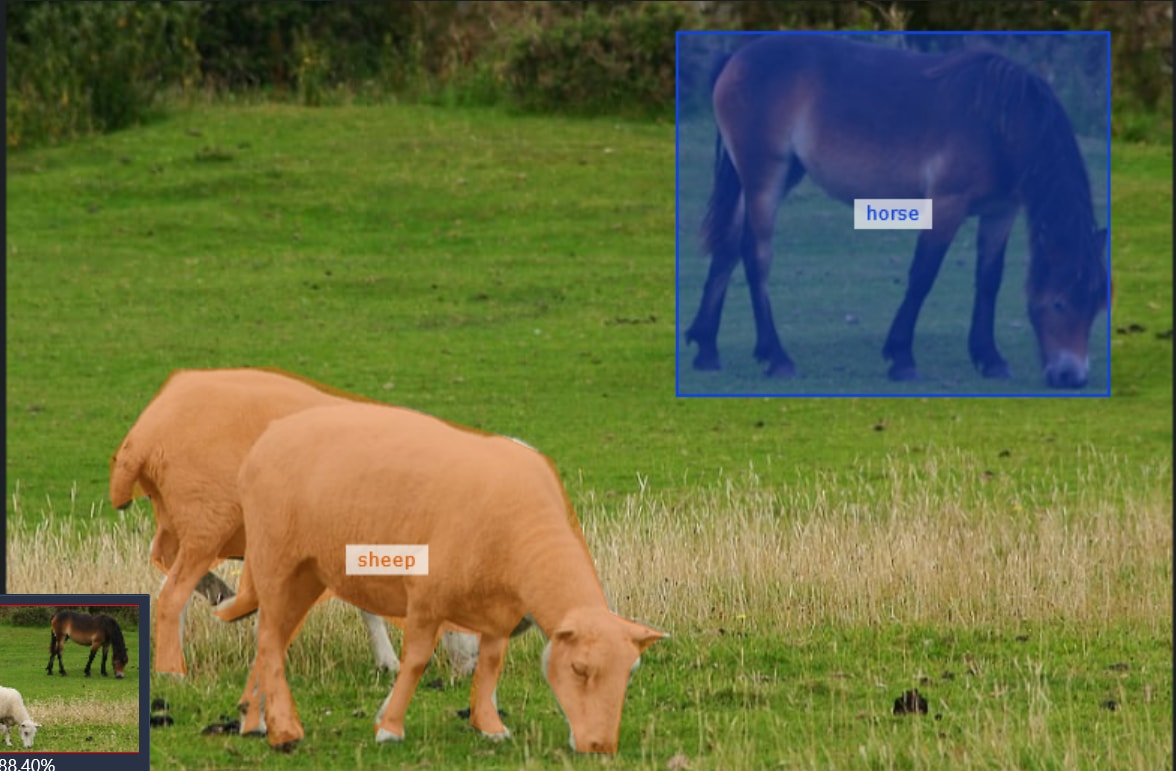
Draw bounding boxes and polygon masks on your images, name each shape with your own labels, and export the coordinates as JSON to train object detection and segmentation models. Everything happens in your browser: your images are never uploaded.
or ·

How it works
- Load your images: pick files, open a folder or drop them on the page, then move between them with the arrows at the top or the ← → keys.
- Draw rectangles (R) for bounding boxes or polygons (P) for object outlines.
- Label each shape in the box that appears after you draw it: pick a label, or type a new name to create one (car, person, dog…). Keys 1–9 assign your first nine labels.
- Save JSON with the disk icon or Ctrl+S to download each image's annotations. Your work is also saved automatically in this browser, and you can mark each image Done to track your progress.
Features
★ Rectangle (bounding box) and polygon tools, with zoom & pan.
★ Built for object detection and instance segmentation (Mask R-CNN, etc).
★ Private by design: images stay on your computer, nothing is uploaded.
★ Full screen display, crosshair guide & snapshot capture.
★ Keyboard shortcuts for every tool, label and image.
★ Clean JSON output: pixel coordinates, bounding box & label for every shape.
★ Label manager: add, rename, recolor, reorder & merge labels, and your shapes follow.
★ History of every edit: click an entry to return to that state.
★ Automatic saving in your browser while you work.
★ Drag & drop whole folders, and track which images are done.
Tips: press ? in the app or · mouse wheel or + − to zoom, 0 to fit · hold Space or right-click and drag to pan · finish a polygon by clicking its first point, double-clicking or pressing Enter · with the Select tool (V), drag a shape to move it, drag a polygon edge to add a point, double-click a point to remove it.
Frequently asked questions
What is PixLab Annotate?
PixLab Annotate is a free, web-based image annotation tool for creating machine-learning training data. You draw bounding boxes (rectangles) and polygon masks on your images, give each shape a label, and export the result as JSON.
Is PixLab Annotate free? Do I need an account?
Yes, it is free to use. There is no account, sign-up or installation: it runs in any modern desktop web browser.
Are my images uploaded to a server?
No. Your images are opened directly from your computer and processed inside your browser. Your annotations and labels are stored in your browser's local storage, and neither your images nor your annotations are ever uploaded.
Which annotation types are supported?
Rectangles (bounding boxes) for object detection and polygons for segmentation masks. Each shape gets a label from your own list of named, color-coded labels.
What does the JSON export contain?
One JSON file per image. For every annotation it lists the shape type (rect or polygon), its points in the original image's pixel coordinates, its bounding box (xMin, yMin, width, height), and its label name and color.
Can I annotate many images in one session?
Yes. Load a batch of images or a whole folder, move between them with the arrows or the arrow keys, and mark each image as done to track your progress. The annotations of each image are saved automatically in your browser so you can come back to them later. Use Save JSON to download a permanent copy.
Does PixLab Annotate have keyboard shortcuts?
Yes. Press ? in the app to see them all. The main ones are V, R and P to switch tools, 1 to 9 to assign a label, Ctrl+Z to undo, Delete to remove a shape, and the left and right arrow keys to change image.
Can I use the annotations to train object detection or segmentation models?
Yes. Rectangles give you bounding boxes for object detection models, and polygons give you object outlines that you can convert to masks for instance segmentation models such as Mask R-CNN.
Also from PixLab
❤ Features & Support requests can be made via the PixLab Github Repository.
Current Annotations (0)
Name
Edit
Delete
Show / Hide
Events History